"Darwin was the first to use data from nature to convince people that evolution is true, and his idea of natural selection was truly novel. It testifies to his genius that the concept of natural theology, accepted by most educated Westerners before 1859, was vanquished within only a few years by a single five-hundred-page book. On the Origin of Species turned the mysteries of life's diversity from mythology into genuine science." -- Jerry Coyne
Showing posts with label Apple Mac Mini desktop computer. Show all posts
Showing posts with label Apple Mac Mini desktop computer. Show all posts
By pressing certain key combinations, you can do things that normally need a mouse, trackpad, or other input device.
To use a keyboard shortcut, press and hold one or more modifier keys and then press the last key of the shortcut. For example, to use Command-C (copy), press and hold the Command key, then the C key, then release both keys. Mac menus and keyboards often use symbols for certain keys, including modifier keys:
Command (or Cmd) ⌘
Shift ⇧
Option (or Alt) ⌥
Control (or Ctrl) ⌃
Caps Lock ⇪
Fn
On keyboards made for Windows PCs, use the Alt key instead of Option, and the Windows logo key instead of Command.
Some keys on some Apple keyboards have special symbols and functions, such as for display brightness , keyboard brightness , Mission Control, and more. If these functions aren't available on your keyboard, you might be able to reproduce some of them by creating your own keyboard shortcuts. To use these keys as F1, F2, F3, or other standard function keys, combine them with the Fn key.
Cut, copy, paste, and other common shortcuts
Command-X: Cut the selected item and copy it to the Clipboard.
Command-C: Copy the selected item to the Clipboard. This also works for files in the Finder.
Command-V: Paste the contents of the Clipboard into the current document or app. This also works for files in the Finder.
Command-Z: Undo the previous command. You can then press Shift-Command-Z to Redo, reversing the undo command. In some apps, you can undo and redo multiple commands.
Command-A: Select All items.
Command-F: Find items in a document or open a Find window.
Command-G: Find Again: Find the next occurrence of the item previously found. To find the previous occurrence, press Shift-Command-G.
Command-H: Hide the windows of the front app. To view the front app but hide all other apps, press Option-Command-H.
Command-M: Minimize the front window to the Dock. To minimize all windows of the front app, press Option-Command-M.
Command-O: Open the selected item, or open a dialog to select a file to open.
Command-P: Print the current document.
Command-S: Save the current document.
Command-T: Open a new tab.
Command-W: Close the front window. To close all windows of the app, press Option-Command-W.
Command–Space bar: Show or hide the Spotlight search field. To perform a Spotlight search from a Finder window, press Command–Option–Space bar. (If you use multiple input sources to type in different languages, these shortcuts change input sources instead of showing Spotlight. Learn how to change a conflicting keyboard shortcut.)
Control–Command–Space bar: Show the Character Viewer, from which you can choose emoji and other symbols.
Control-Command-F: Use the app in full screen, if supported by the app.
Space bar: Use Quick Look to preview the selected item.
Command-Tab: Switch to the next most recently used app among your open apps.
Shift-Command-N: Create a new folder in the Finder.
Command-Comma (,): Open preferences for the front app.
Sleep, log out, and shut down shortcuts
You might need to press and hold some of these shortcuts for slightly longer than other shortcuts. This helps you to avoid using them unintentionally.
Power button: Press to turn on your Mac or wake it from sleep. Press and hold for 1.5 seconds to put your Mac to sleep.* Continue holding to force your Mac to turn off.
Option–Command–Power button* or Option–Command–Media Eject: Put your Mac to sleep.
Control–Shift–Power button* or Control–Shift–Media Eject: Put your displays to sleep.
Control–Power button* or Control–Media Eject: Display a dialog asking whether you want to restart, sleep, or shut down.
Control–Command–Power button:* Force your Mac to restart, without prompting to save any open and unsaved documents.
Control–Command–Media Eject: Quit all apps, then restart your Mac. If any open documents have unsaved changes, you will be asked whether you want to save them.
Control–Option–Command–Power button* or Control–Option–Command–Media Eject: Quit all apps, then shut down your Mac. If any open documents have unsaved changes, you will be asked whether you want to save them.
Control-Command-Q: Immediately lock your screen.
Shift-Command-Q: Log out of your macOS user account. You will be asked to confirm. To log out immediately without confirming, press Option-Shift-Command-Q.
Command-F: Start a Spotlight search in the Finder window.
Command-I: Show the Get Info window for a selected file.
Command-R: (1) When an alias is selected the Finder: show the original file for the selected alias. (2) In some apps, such as Calendar or Safari, refresh or reload the page. (3) In Software Update preferences, check for software updates again.
Shift-Command-C: Open the Computer window.
Shift-Command-D: Open the desktop folder.
Shift-Command-F: Open the Recents window, showing all of the files you viewed or changed recently.
Shift-Command-G: Open a Go to Folder window.
Shift-Command-H: Open the Home folder of the current macOS user account.
Shift-Command-I: Open iCloud Drive.
Shift-Command-K: Open the Network window.
Option-Command-L: Open the Downloads folder.
Shift-Command-N: Create a new folder.
Shift-Command-O: Open the Documents folder.
Shift-Command-P: Show or hide the Preview pane in Finder windows.
Shift-Command-R: Open the AirDrop window.
Shift-Command-T: Show or hide the tab bar in Finder windows.
Control-Shift-Command-T: Add selected Finder item to the Dock (OS X Mavericks or later)
Shift-Command-U: Open the Utilities folder.
Option-Command-D: Show or hide the Dock.
Control-Command-T: Add the selected item to the sidebar (OS X Mavericks or later).
Option-Command-P: Hide or show the path bar in Finder windows.
Option-Command-S: Hide or show the Sidebar in Finder windows.
Command–Slash (/): Hide or show the status bar in Finder windows.
Command-J: Show View Options.
Command-K: Open the Connect to Server window.
Command-L: Make an alias of the selected item.
Command-N: Open a new Finder window.
Option-Command-N: Create a new Smart Folder.
Command-T: Show or hide the tab bar when a single tab is open in the current Finder window.
Option-Command-T: Show or hide the toolbar when a single tab is open in the current Finder window.
Option-Command-V: Move: Move the files in the Clipboard from their original location to the current location.
Command-Y: Use Quick Look to preview the selected files.
Option-Command-Y: View a Quick Look slideshow of the selected files.
Command-1: View the items in the Finder window as icons.
Command-2: View the items in a Finder window as a list.
Command-3: View the items in a Finder window in columns.
Command-4: View the items in a Finder window in a gallery.
Command–Left Bracket ([): Go to the previous folder.
Command–Right Bracket (]): Go to the next folder.
Command–Up Arrow: Open the folder that contains the current folder.
Command–Control–Up Arrow: Open the folder that contains the current folder in a new window.
Command–Down Arrow: Open the selected item.
Right Arrow: Open the selected folder. This works only when in list view.
Left Arrow: Close the selected folder. This works only when in list view.
Command-Delete: Move the selected item to the Trash.
Shift-Command-Delete: Empty the Trash.
Option-Shift-Command-Delete: Empty the Trash without confirmation dialog.
Command–Brightness Down: Turn video mirroring on or off when your Mac is connected to more than one display.
Option–Brightness Up: Open Displays preferences. This works with either Brightness key.
Control–Brightness Up or Control–Brightness Down: Change the brightness of your external display, if supported by your display.
Option–Shift–Brightness Up or Option–Shift–Brightness Down: Adjust the display brightness in smaller steps. Add the Control key to this shortcut to make the adjustment on your external display, if supported by your display.
Option–Mission Control: Open Mission Control preferences.
Command–Mission Control: Show the desktop.
Control–Down Arrow: Show all windows of the front app.
Option–Volume Up: Open Sound preferences. This works with any of the volume keys.
Option–Shift–Volume Up or Option–Shift–Volume Down: Adjust the sound volume in smaller steps.
Option–Keyboard Brightness Up: Open Keyboard preferences. This works with either Keyboard Brightness key.
Option–Shift–Keyboard Brightness Up or Option–Shift–Keyboard Brightness Down: Adjust the keyboard brightness in smaller steps.
Option key while double-clicking: Open the item in a separate window, then close the original window.
Command key while double-clicking: Open a folder in a separate tab or window.
Command key while dragging to another volume: Move the dragged item to the other volume, instead of copying it.
Option key while dragging: Copy the dragged item. The pointer changes while you drag the item.
Option-Command while dragging: Make an alias of the dragged item. The pointer changes while you drag the item.
Option-click a disclosure triangle: Open all folders within the selected folder. This works only when in list view.
Command-click a window title: See the folders that contain the current folder.
Click the Go menu in the Finder menu bar to see shortcuts for opening many commonly used folders, such as Applications, Documents, Downloads, Utilities, and iCloud Drive.
Document shortcuts
The behavior of these shortcuts may vary with the app you're using.
Command-B: Boldface the selected text, or turn boldfacing on or off.
Command-I: Italicize the selected text, or turn italics on or off.
Command-K: Add a web link.
Command-U: Underline the selected text, or turn underlining on or off.
Command-T: Show or hide the Fonts window.
Command-D: Select the Desktop folder from within an Open dialog or Save dialog.
Control-Command-D: Show or hide the definition of the selected word.
Shift-Command-Colon (:): Display the Spelling and Grammar window.
Command-Semicolon (;): Find misspelled words in the document.
Option-Delete: Delete the word to the left of the insertion point.
Control-H: Delete the character to the left of the insertion point. Or use Delete.
Control-D: Delete the character to the right of the insertion point. Or use Fn-Delete.
Fn-Delete: Forward delete on keyboards that don't have a Forward Delete key. Or use Control-D.
Control-K: Delete the text between the insertion point and the end of the line or paragraph.
Fn–Up Arrow: Page Up: Scroll up one page.
Fn–Down Arrow: Page Down: Scroll down one page.
Fn–Left Arrow: Home: Scroll to the beginning of a document.
Fn–Right Arrow: End: Scroll to the end of a document.
Command–Up Arrow: Move the insertion point to the beginning of the document.
Command–Down Arrow: Move the insertion point to the end of the document.
Command–Left Arrow: Move the insertion point to the beginning of the current line.
Command–Right Arrow: Move the insertion point to the end of the current line.
Option–Left Arrow: Move the insertion point to the beginning of the previous word.
Option–Right Arrow: Move the insertion point to the end of the next word.
Shift–Command–Up Arrow: Select the text between the insertion point and the beginning of the document.
Shift–Command–Down Arrow: Select the text between the insertion point and the end of the document.
Shift–Command–Left Arrow: Select the text between the insertion point and the beginning of the current line.
Shift–Command–Right Arrow: Select the text between the insertion point and the end of the current line.
Shift–Up Arrow: Extend text selection to the nearest character at the same horizontal location on the line above.
Shift–Down Arrow: Extend text selection to the nearest character at the same horizontal location on the line below.
Shift–Left Arrow: Extend text selection one character to the left.
Shift–Right Arrow: Extend text selection one character to the right.
Option–Shift–Up Arrow: Extend text selection to the beginning of the current paragraph, then to the beginning of the following paragraph if pressed again.
Option–Shift–Down Arrow: Extend text selection to the end of the current paragraph, then to the end of the following paragraph if pressed again.
Option–Shift–Left Arrow: Extend text selection to the beginning of the current word, then to the beginning of the following word if pressed again.
Option–Shift–Right Arrow: Extend text selection to the end of the current word, then to the end of the following word if pressed again.
Control-A: Move to the beginning of the line or paragraph.
Control-E: Move to the end of a line or paragraph.
Control-F: Move one character forward.
Control-B: Move one character backward.
Control-L: Center the cursor or selection in the visible area.
Control-P: Move up one line.
Control-N: Move down one line.
Control-O: Insert a new line after the insertion point.
Control-T: Swap the character behind the insertion point with the character in front of the insertion point.
Command–Left Curly Bracket ({): Left align.
Command–Right Curly Bracket (}): Right align.
Shift–Command–Vertical bar (|): Center align.
Option-Command-F: Go to the search field.
Option-Command-T: Show or hide a toolbar in the app.
Option-Command-C: Copy Style: Copy the formatting settings of the selected item to the Clipboard.
Option-Command-V: Paste Style: Apply the copied style to the selected item.
Option-Shift-Command-V: Paste and Match Style: Apply the style of the surrounding content to the item pasted within that content.
Option-Command-I: Show or hide the inspector window.
Shift-Command-P: Page setup: Display a window for selecting document settings.
Shift-Command-S: Display the Save As dialog, or duplicate the current document.
Shift–Command–Minus sign (-): Decrease the size of the selected item.
Shift–Command–Plus sign (+): Increase the size of the selected item. Command–Equal sign (=) performs the same function.
Shift–Command–Question mark (?): Open the Help menu.
Other shortcuts
For more shortcuts, check the shortcut abbreviations shown in the menus of your apps. Every app can have its own shortcuts, and shortcuts that work in one app might not work in another.
Every spring, without me doing anything, in 5 places in my yard, numerous beautiful plants start growing out of the ground. The people who lived here before created a paradise. They really knew what they were doing because these are the most beautiful plants I have ever seen.
For this spring I created 2 small habitats in the yard for birds and other creatures. I'm waiting for Amazon to deliver bird food which I would put outside my favorite window (which is by my apple desktop computer) and watch birds get fat.
Christian fucktards think they will have a magical 2nd life in a magical heaven somewhere in the universe. The paradise called "Earth" is not good enough for them.
They can have their moronic ridiculous fantasy. I prefer reality. Reality is much more interesting than religious bullshit, and reality has the advantage of being real.
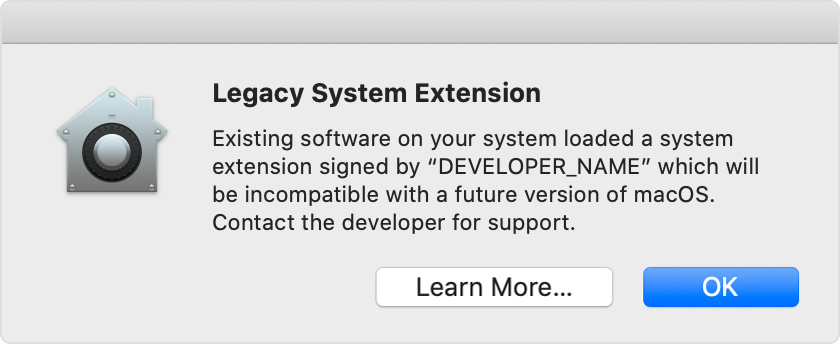
Some system extensions will not be compatible with a future version of macOS.
System extensions are a category of software that works in the background to extend the functionality of your Mac. Some apps install kernel extensions, which are a kind of system extension that works using older methods that aren't as secure or reliable as modern alternatives. Your Mac identifies these as legacy system extensions.
In 2019, Apple informed developers that macOS Catalina will be the last macOS to fully support legacy system extensions, and we've been working with developers to transition their software. By moving beyond these extensions, developers are helping to further modernize the Mac, improve its security and reliability, and enable more user-friendly software distribution methods. A final transition date has not yet been set.
Until the transition is complete, your Mac displays a message when a legacy system extension first loads, and again periodically while the extension remains in use. This gives you advance notice that existing software on your system loaded a system extension that will be incompatible with a future version of macOS:
Legacy system extensions and the apps that rely on them continue to work today. But now is a good time tocontact the developerto learn whether an updated version of their software is available or planned. The developer can also explain how to remove or disable the extension, and the consequences of doing so.
Information about products not manufactured by Apple, or independent websites not controlled or tested by Apple, is provided without recommendation or endorsement. Apple assumes no responsibility with regard to the selection, performance, or use of third-party websites or products. Apple makes no representations regarding third-party website accuracy or reliability.Contact the vendorfor additional information.
Catalina is very nice but Apple decided to throw out something called "Dashboard" which I used frequently. Fortunately I was able to figure out how to live without it.
Here in this beautiful farm town, the electricity works perfectly 100% of the time, including during snowstorms, violent thunderstorms, extreme heat, extreme cold, and strong winds. Never once has the electricity gone out, not even for one second.
The internet speed (Comcast) is faster than I thought was possible. Less than one second for everything.
Internet speed test: Download Mbps is 358.20.
Praise Comcast. Praise my farm town. Praise my powerful apple desktop computer with a huge screen for playing chess and watching movies.
And praise the American taxpayers who are paying all my bills so I never have to work again.
Imagine getting up in the morning and having to go to work. Now imagine getting up in the morning and having nothing to do but have fun, forever until the end of time, or when I drop dead, whichever comes first.
Also imagine living in the most wonderful house in the world, my home. This is heaven, a real heaven, no magic required.
Mark Zuckerberg isn’t the only executive fretting about what the Massachusetts senator would do if she reaches the White House.
•••••••••••••••••••••••••••••••••••
What I wrote at the Wall Street Journal:
"His firm is one of a handful of tech giants targeted for breakup by Ms. Warren and others who believe the Facebooks, Googles, Amazons, and Apples have grown too powerful."
I never use Facebook but I use Google for numerous things every day and it's free. I have an Apple desktop computer that's fantastic. Everything I buy is from Amazon because they make shopping easy.
Warren thinks being brilliant and successful is a bad thing that needs to be punished.
If Warren wins the Democratic nomination for president, I'm voting for the celebrity clown, aka Trump.
I found this disgusting bullshit at the New York Times:
"Google, Facebook, Amazon and Apple are targets of government investigations and public outrage, facing accusations that they abuse their power in various ways, from exploiting personal information to stifling rivals."
Public outrage? Bullshit. I don't use Facebook but I could not live without Google, Amazon, and Apple. The government should not be punishing corporations because they are brilliant and successful.
I have an Apple desktop computer that's fantastic. I use Google for free more than 100 times a day for countless reasons. I buy all my stuff from Amazon.
And the fucking government wants to attack this stuff. Fuck you government.
I have a wonderful and powerful Apple Mac Mini desktop computer with a very large screen and extremely fast internet. I got $3,000 of equipment here and for me it's heaven.
I frequently forget how to spell words and how to pronounce words, and sometimes I completely forget the word I need. To solve these problems I was using Google Chrome's "Search by Voice" which helped me a lot. I use it several times a day, sometimes just because I enjoy using it.
A few months ago the thing stopped working. I could not fix it. I hired someone to fix it but she failed. Finally I gave up.
A few days ago I was exploring the Apple System Preferences thing. Completely by accident, I found the solution to my problem. What a wonderful surprise that was.
From "System Preferences" I went to "Security & Privacy". Then I saw something called "Microphone". That's when I saw the most beautiful thing. It said "Allow the apps below to access your microphone". And there was "Google Chrome". I clicked the "✔" thing to turn it on and that solved my problem. Hallelujah!!!
I just used "Search by Voice" to find the word "Hallelujah".
I also have something on my computer that makes it very easy to correct spelling errors, which is nice because I misspell every other word or a word is missing.
Thanks to my computer I never have to think, except when I play chess.
Today, by the way, I was winning a chess game. I spent a long time on one move then after I moved I noticed my queen was being attacked and it was obvious. I lost a won game which happens very often.
I appreciate the hard work that made this thing possible.
After a game I used to be able to shrink the screen so I could see both the entire board and the computer analysis chart. Now I can't do that. With my Apple desktop computer, I used to be able to press "cmd" and "-" to shrink the screen. Now that doesn't work. Please fix.
It's a Logitech K750 SOLAR for Mac. It requires zero batteries. Light from my lamp is all it needs. The old one died after the 3-year warranty expired so I had to buy a new one. I paid Amazon to get it delivered the next day. It came this morning, Sunday, after I ordered it Saturday afternoon. I love Amazon. The K750 is the best keyboard for Apple desktop computers.
•••••••••••••••••••••••••••••••••••••••••••••••••
My new home in a northwestern Illinois farm town is wonderful. One of my two next-door neighbors is a very old graveyard. So far there has been no zombie problems.
Are zombies real? According to every branch of the Christian death cult, the Magic Jeebus Man was a zombie. Christians are fucking insane.
•••••••••••••••••••••••••••••••••••••••••••••••••
My house has a basement, two floors, and a garage. I don't have very far to walk to buy excellent food. Also there is an excellent bakery nearby. I have no car. It's a poverty problem.
•••••••••••••••••••••••••••••••••••••••••••••••••
All religions are bullshit but I decided I like Mormons and I plan to learn what I can about them. They must be doing something right because they usually have tons of money.
Can a religion be a good thing? I suppose it's possible if people don't mind wasting their lives believing in bullshit.
Wikipedia - Mormons has lots of interesting information about the "Church of Jesus Christ of Latter-day Saints".
I prefer reality, also known as atheism. I could not throw out atheism even if I wanted to. I just know too much about how the world works, and the god thing is too ridiculous to take seriously.
I have a very powerful Apple desktop computer, a huge screen, and extremely fast internet. Apple has a web browser called Safari. It's very nice but for some things it doesn't work.
Google Chrome always works. Chrome recently made it much easier to add shortcuts to links I use frequently.
I noticed my memory isn't what it used to be. I forget how to spell words and I frequently forget what the word is. To fix this problem I use "Google search by voice". The female voice has learned how to understand me and she virtually always gives me exactly what I'm looking for. I don't need to remember anything. Google is my friend.
I use Google for everything including this blog, my checking account spreadsheet which by the way is a beautiful thing, google documents, google search, google maps, google images, google gmail, google news, google alerts, google youtube, and a few other things but I forgot what they are.
I use google search several times every hour. If there is an all knowing god thing it's Google Search.
I have lots of curiosity. Looking things up is a wonderful thing.
UPDATE:
Because of a dumb mistake I made the "Google search by voice" thing is not working. Despite numerous attempts to fix it I can't get it working again.
UPDATE:
The problem was not my fault. For only $369 I found out Google Search By Voice is a problem Chrome has and if I wait long enough Chrome will work for Search By Voice. What a fucking waste of money.
I used only one hour. I have 3 hours left of more help for any problem which the $369 paid for. I will probably never need it.
They are called "Geeks On Site". The young black lady who was here is a genius. UPDATE MAY 17, 2020 I got the problem fixed. I accidentally found the solution in my Apple computer at system preferences. Now Google Search By Voice works perfectly. I should have got help from Apple. They would have fixed the problem in less than a minute and charged me nothing or just charge a little bit.
Apple next major revision to its Macintosh operating system is called macOS Mojave. The company revealed the update at its 2018 Worldwide Developers Conference in June, and it features several user interface improvements to make the experience on the Mac better.
In this FAQ, we’ll give you the general details on macOS Mojave: When it will be release, what Macs are compatible, etc. We’ll add more details to this article as they become available.
Updated 8/13/18: Apple on Monday released the seventh developer beta of macOS Mojave, which removes Group FaceTime.
Can I try the macOS Mojave beta?
Apple is currently on the sixth version of the macOS Mojave developer beta, and the fifth version of the public beta.
Developers can get a beta of macOS Mojave through the Apple Developer Program. The developer beta costs $99 per year.
Apple also releases a free beta to the general public. Since the software is beta, it isn’t as reliable as officially-released versions to the general public and it could cause problems on your Mac. The public beta is a few cycles behind the developer beta, so they’re not the same. Learn more about the macOS Mojave public beta program.
If you try out the beta and decide later that you don’t want to use it anymore, you can go back to macOS High Sierra.
You can continue to participate in the beta program after the Mojave golden master has been released. You’ll get beta versions of the Mojave updates.
What are macOS Mojave’s major new features?
The features that Apple highlighted during WWDC focused on the user interface. They’ll make your Mac easier and more efficient to use. Here’s a list of some of the new features. Click on the link to get more information, including instructions on how to use the feature in macOS Mojave. (If there’s no link, we’re working on the article and will post it soon.)
Apple had touted Group FaceTime as a new feature, but with the seventh Mojave developer beta, the company announced in the release notes that Group FaceTime will not be available in the initial release of Mojave. It will be available as a software update later in the fall.
Group FaceTime will allow you to perform a group chat with up to 32 people at the same time, either audio or video. The feature works on both Mojave Macs and iOS devices running iOS 12.
What other macOS Mojave features should I know about?
The features listed above will have the greatest appeal, but there are a lot of other features in Mojave that you’ll find useful.
Siri will have several improvements, including the ability to control HomeKit devices from your Mac and the ability to use Find My iPhone.
Safari will have Favicons in tabs and intelligent tracking protection.
Quick Look will have editing tools.
Apple Mail will support emojis and be able to suggest a mailbox in which to file an email.
Enhanced support for passwords, including the ability to automatically create strong passwords, autofill of passcodes sent via text, and password auditing.
No—and Apple was emphatic about that. But Apple did announce at WWDC that they are working on giving developers that ability to more easily port their iOS apps over to macOS. In fact, Mojave has three new apps that were originally iOS apps, and they were brought over to macOS using the new framework. Apple says that they are planning to have the iOS-to-macOS tools available in 2019.
What new apps are in macOS Mojave?
As mentioned above, Mojave has three new apps that were originally iOS apps: Apple News, Stocks, and Voice Memos. There’s also a new Home app for managing internet-of-things devices.
The Mac App Store isn’t a new app, but it gets a major redesign that makes it look more like the iOS App Store.
Which Macs are compatible with macOS Mojave?
MacBook (Early 2015 or newer)
MacBook Air (Mid 2012 or newer)
MacBook Pro (Mid 2012 or newer)
Mac mini (Late 2012 or newer)
iMac (Late 2012 or newer)
iMac Pro (2017)
Mac Pro (Late 2013, plus mid-2010 and mid-2012 models with recommended Metal-capable GPU)
If your Mac isn’t on this list, you can continue to run macOS Sierra or High Sierra.
When will macOS Mojave be released?
Apple does its major operating system releases in the Fall. So expect macOS Mojave to be released around the end of September.
How can I get macOS Mojave?
Apple will make macOS Mojave available through the Mac App Store. The download will probably be over 2GB, and the installation will take several minutes, so use a reliable internet connection and be prepare to not be able to use you Mac for anything else other than the installation. Updates to Mojave will happen through the Software Update system preference, a change from previous versions that did updates through the App Store.
How much will macOS Mojave cost?
It’s free.
Why is the new macOS called ‘Mojave’?
Apple names macOS after California locations, a method adopted in 2014 with OS X Yosemite. In case you’re wondering, it’s pronounced “Mo-HA-vey.” Mojave is a national preserve in the area between Los Angeles and Las Vegas, Nevada.
In 2015, Apple decided to switch from calling the Mac operating system “OS X” to “macOS.”
Roman has covered technology since the early 1990s. His career started at MacUser, and he's worked for MacAddict, Mac|Life, and TechTV. He's also written for MacRumors and Realtor.com.


 , keyboard brightness
  , Mission Control, and more. If these functions aren't available on your keyboard, you might be able to reproduce some of them by creating your own keyboard shortcuts. To use these keys as F1, F2, F3, or other standard function keys, combine them with the Fn key.
 : Put your Mac to sleep.